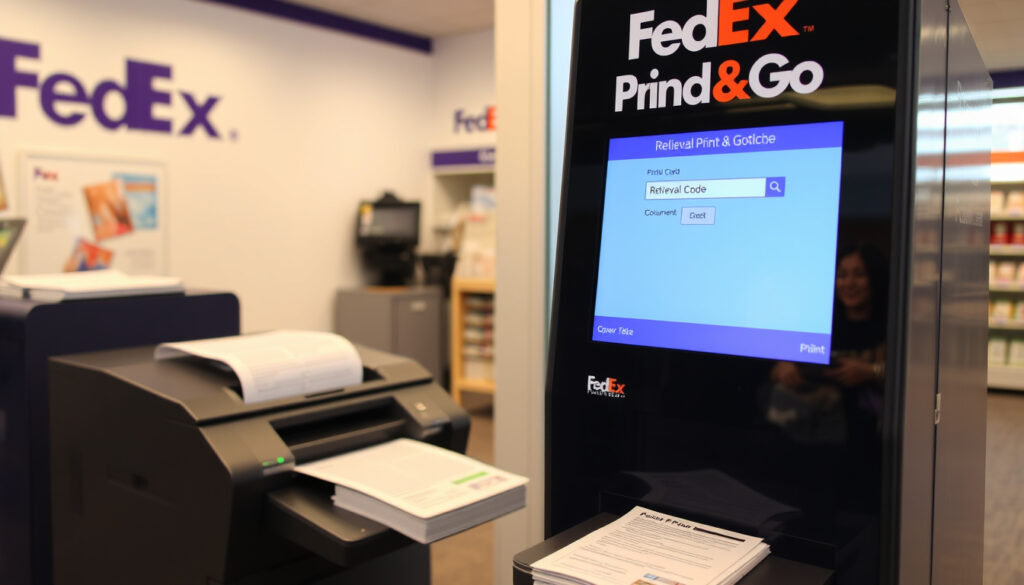
FedEx Print & Go: How to Print at FedEx with a Retrieval Code
You’ve got a document that needs to be printed, and a FedEx Office is nearby. The “Print & Go” kiosk promises a quick, no‑account-required way to print – but the process isn’t always obvious. Sending files to printandgo@fedex.com and waiting for a retrieval code can feel like a small leap of faith. This guide walks through the exact steps, common hiccups, and what to expect when you walk up to that self‑service machine.
File submission methods: Email, USB, Cloud ·
Color options: Color and Black & White ·
Service type: Self-service kiosk
Quick snapshot
- Submit files via email, USB, or cloud (FedEx Office – Services)
- Receive a retrieval code (FedEx Office – Services)
- Enter code at self‑service kiosk to print (FedEx Office – Services)
- Pay per page at the kiosk (FedEx Office – Services)
- Pricing varies by location and paper type
- Color prints typically cost more than black & white
- Check in‑store kiosk for exact rates
- Available at all FedEx Office locations
- Many locations offer 24/7 self‑service kiosks
- Use FedEx location finder for nearest store
- PDF, Word, Excel, PowerPoint, and image formats
- Maximum file size limited (check kiosk details)
- Mac PDF files may have compatibility issues (confirmed by users)
Four submission methods, one pattern: email remains the fastest way to get a code, but USB and cloud uploads are equally reliable once you’re at the kiosk.
A FedEx Office location page describes Print & Go as a way to access and print documents from the cloud, USB, or email at local stores. This table summarizes the service specifications.
| Label | Value |
|---|---|
| Service Name | FedEx Office Print & Go |
| Submission Methods | Email, USB, Cloud |
| Print Sizes | Small format (up to 11×17 inches) |
| Availability | All FedEx Office locations in the U.S. |
How to print a document through FedEx?
What is the FedEx Print & Go process?
- Step 1: Prepare your file. Supported formats include PDF, Word, Excel, PowerPoint, and common image types (FedEx Office – Self-Service Copy & Printing).
- Step 2: Send the file to
printandgo@fedex.comfrom any email account. You can also upload from cloud storage (Google Drive, Dropbox) or use a USB drive at the kiosk (FedEx Office – Print & Go page). - Step 3: Wait for the retrieval code. FedEx says it can take up to 5 minutes to arrive by email (FedEx Office – Print & Go page).
- Step 4: Visit a FedEx Office location, go to the self‑service area, select “Print from Retrieval Code” on the touchscreen, and enter the code you received (FedEx Office – Print & Go page).
- Step 5: Follow the on‑screen prompts to adjust settings (color, copies, paper size) and pay. The machine accepts credit cards and other payment methods.
The implication: this five-step sequence is designed for speed, but the waiting period for the code can test patience in a hurry.
How to use a retrieval code at the kiosk?
Once you have the six‑digit code, the kiosk walkthrough is simple: tap “Print from Retrieval Code,” type the code, and your document appears on the screen. You can then choose color or black‑and‑white, number of copies, and single‑ or double‑sided printing. The code is valid for 10 days from the date it was sent (FedEx Office – Print & Go page).
What file formats are supported?
FedEx Office self‑service machines accept PDF, Microsoft Word (.docx), Excel (.xlsx), PowerPoint (.pptx), and common image formats like JPEG and PNG (FedEx Office – Self-Service Copy & Printing).
Mac users have reported that PDFs sent from macOS sometimes arrive corrupted at the kiosk. The issue hasn’t been officially confirmed by FedEx, but a workaround is to save the PDF as “optimized for web” or use a Windows machine to submit the file.
Can you email files to FedEx to print?
What email address do you send to?
The dedicated Print & Go email address is printandgo@fedex.com (FedEx Office – Print & Go page). FedEx recommends adding it to your address book so you can quickly send files when you’re in a hurry.
How to attach files?
Attach your document(s) to the email just like any other message. There’s no need for a subject line or body text – the system reads the attachments. Each file is separate and will appear as a separate print job at the kiosk.
Can you send multiple files?
Yes, you can attach multiple files to a single email. The kiosk will list them individually, and you can choose which ones to print (inferred from service features).
Emailing files is the most convenient method for remote submission – you can send them from home, work, or your phone while you’re in the car. The retrieval code arrives in minutes, and you don’t need to carry a USB drive.
How to get a FedEx print code?
What is a retrieval code?
A retrieval code is a unique numeric identifier sent to your email after you submit a file to Print & Go. You enter this code at the self‑service kiosk to release your print job. It’s valid for 10 days (FedEx Office – Print & Go page).
How long does it take to receive?
FedEx states the code can take up to 5 minutes to arrive (FedEx Office – Print & Go page). In practice, most users receive it within a minute or two, but spam filters can cause delays. If you don’t see it, check your junk folder.
What if I don’t get the code?
If the code hasn’t arrived after 10 minutes, try resending the file. Also verify you’re using the correct email address – printandgo@fedex.com. If the problem persists, a FedEx Office team member can help you retrieve the job from the email you sent (by asking for the store’s retail email address) (FedEx – How To Print a Shipping Label).
Can I print directly from my phone at FedEx?
Using the FedEx Office mobile app?
FedEx Office does not require a dedicated app for Print & Go. You can email files directly from your phone’s email client or upload from cloud storage using the mobile browser. The same retrieval code process works on any device.
Printing from cloud storage on phone?
Yes, you can upload files from Google Drive, Dropbox, or iCloud directly to the Print & Go system via the FedEx Office website (FedEx Office – Print & Go page). The upload is handled through the web interface, not a mobile app.
Is there a size limit?
Self‑service printers handle small‑format documents up to 11×17 inches (tabloid size). Large‑format printing (posters, blueprints) is not available on Print & Go machines – you’ll need to use the full‑service counter (FedEx Office – Self-Service Copy & Printing).
Why is FedEx printing so expensive?
Pricing for Print & Go varies by location and paper type. Color prints generally cost more than black‑and‑white, and single‑sided copies may have a different rate than double‑sided. According to user discussions on Reddit (r/FedEx community), costs can be significantly higher than at‑home printing, especially for high‑volume jobs. The shipping‑label page also notes a small fee may apply for printing a label from email at a retail store (FedEx – How To Print a Shipping Label).
The implication: Print & Go is best for convenience – a few pages when you’re away from home. For bulk printing, home or office printers are more economical.
What’s confirmed vs. unclear
Confirmed facts
- Print & Go is available at FedEx Office locations in the U.S. (FedEx Office – Services)
- Files can be submitted via email, USB, or cloud (FedEx Office – Print & Go page)
- A retrieval code is sent after submission (FedEx Office – Print & Go page)
- Self‑service kiosks support color and black‑and‑white printing (FedEx Office – Self-Service Copy & Printing)
What’s unclear
- Exact cost per page not publicly specified on all official pages
- Root cause of Mac PDF corruption not officially confirmed by FedEx
- Whether retrieval code expiry time is uniform across all locations
User experiences
“I sent a PDF from my Mac and it came out garbled on the FedEx machine. Had to re-send from a Windows PC and it worked fine.”
— Reddit user on r/FedEx
“Print & Go is super convenient when you’re on the road. The code arrives in under a minute and the kiosk is easy to use.”
— FedEx Office customer review
The pattern: reliability is high for standard files, but Mac users should double‑check PDFs before submitting.
For anyone who relies on FedEx Office for last‑minute printing, the practical steps are clear: use the email method, keep the code handy, and test a single page if you’re using a Mac. The service works well for small jobs, and the 10‑day code window gives you flexibility. For frequent travelers, the choice is simple: add printandgo@fedex.com to your contacts and you’ll never be caught without a printed document again.
office.fedex.com, office.fedex.com, office.fedex.com, office.fedex.com, local.fedex.com, local.fedex.com, local.fedex.com, local.fedex.com, office.fedex.com, office.fedex.com
If you don’t have a FedEx Office nearby, you might find it easier to use a print shop near you for quick document printing instead.
Frequently asked questions
What are FedEx Print & Go hours?
Hours vary by location. Many FedEx Office stores have self‑service kiosks available 24/7, but the full‑service counter may have limited hours. Check the specific store’s page on the FedEx location finder.
Is FedEx Print & Go available 24/7?
Yes, many FedEx Office locations have self‑service kiosks accessible 24 hours a day, even when the store is closed. Confirm with your local store.
What paper options are available at Print & Go kiosks?
Standard 8.5×11 and 11×17 paper are typically available in both white and color. The kiosk will show the options before you print.
Can I use FedEx Print & Go without an account?
Yes, you don’t need a FedEx account. Simply email your file or use a USB drive. Payment is at the kiosk with a credit card.
How do I cancel a print job after submitting files?
Once you’ve sent the file, you cannot cancel it remotely. You can simply not use the retrieval code – it will expire after 10 days. If you’re at the kiosk, you can cancel the job before it starts printing.
What is the maximum file size for email submission?
FedEx does not publicly specify a limit, but standard email attachment limits (typically 25 MB) apply. For larger files, use cloud storage or a USB drive.
Does FedEx Print & Go accept international files or non-English characters?
Yes, the system accepts files from any email, but non‑English characters in filenames may cause display issues. It’s safest to use simple filenames with Latin characters.
Related reading
More related posts
 Best Webcams for Zoom in 2026: Expert-Tested Picks
 ASICS GEL-KAYANO 31: For Walking, Plantar Fasciitis & More
 When Is the PS6 Coming Out? Release Date, Price, Should You Wait
 Sol de Janeiro 76 – Scent Notes, Reviews and Buying Guide
 16 cm to Inches: Exact Conversion with Visual Guide
 Anything But a Backpack Day: Ideas, Trend & Tips
 How to Re et AirPod Pro: Factory Re et Guide (All Model )
 Boxing Gym Near Me: Costs, Beginner Guide & Dublin Options